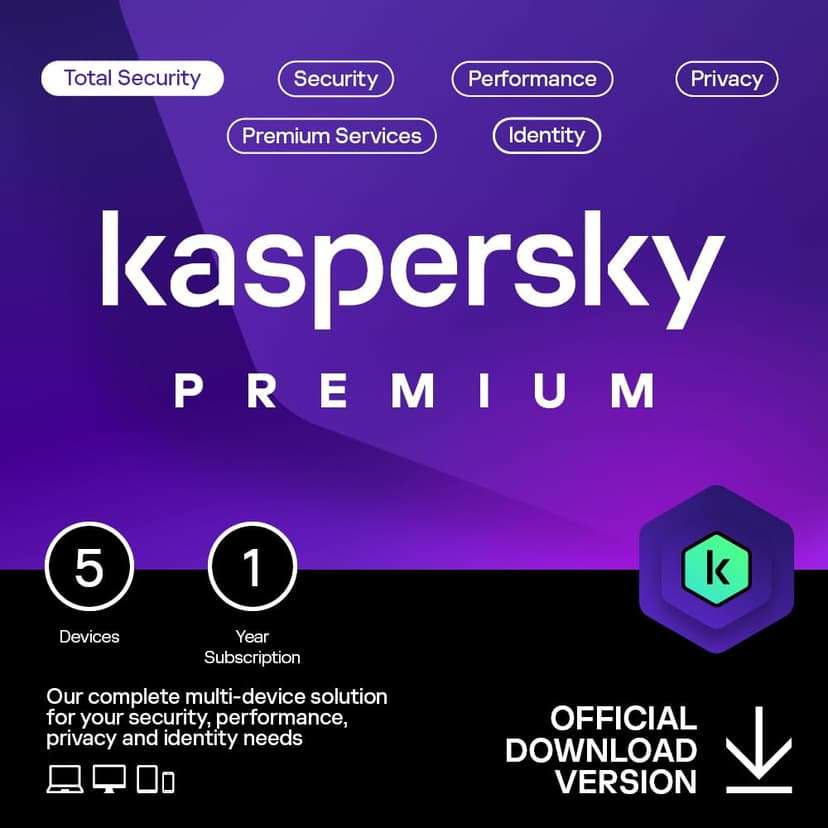

new | Kaspersky Premium Total Security 2024 | 5 Devices | 1 Year | Anti-Phishing and Firewall | Unlimited VPN | Password Manager | Parental Controls | 24/7 Support | PC/Mac/Mobile | Online Code
Brand : Kaspersky
new | Kaspersky Premium Total Security 2024 | 5 Devices | 1 Year | Anti-Phishing and Firewall | Unlimited VPN | Password Manager | Parental Controls | 24/7 Support | PC/Mac/Mobile | Online Code
Brand : Kaspersky
Availability :
Out Of Stock
Click to connect with our customer support
What our customers say

7 days Replacement

Secure Transaction

Free delivery

Manufacturers Warranty

Top Brand

Blue Dart Delivered
Reach out for bulk orders & product enquiries


100% Secure Payments
Safe and Trusted Checkout


Note: Please be aware that products from the USA may come with an input voltage of 110V - 120V, requiring the use of an appropriate step-down transformer for compatibility. Understanding the device's wattage is essential for selecting the correct power converter.