| Condition | new |
|---|---|
| Asin | B07PRTGTSY |
| Category | Office Products |
| Subcategory | Inkjet Printer Ink |
| Leafcategory | Office Product |
| MPN | Intactech CLI226GY*4 |
| Color | Gray |
| Origin | USA |
| Brandname | IN INTACTECH |
| Height | 1 |
| Length | 1 |
| Width | 1 |
| Weight | 1 |
| Warranty Description | 2 year warranty |
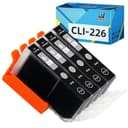
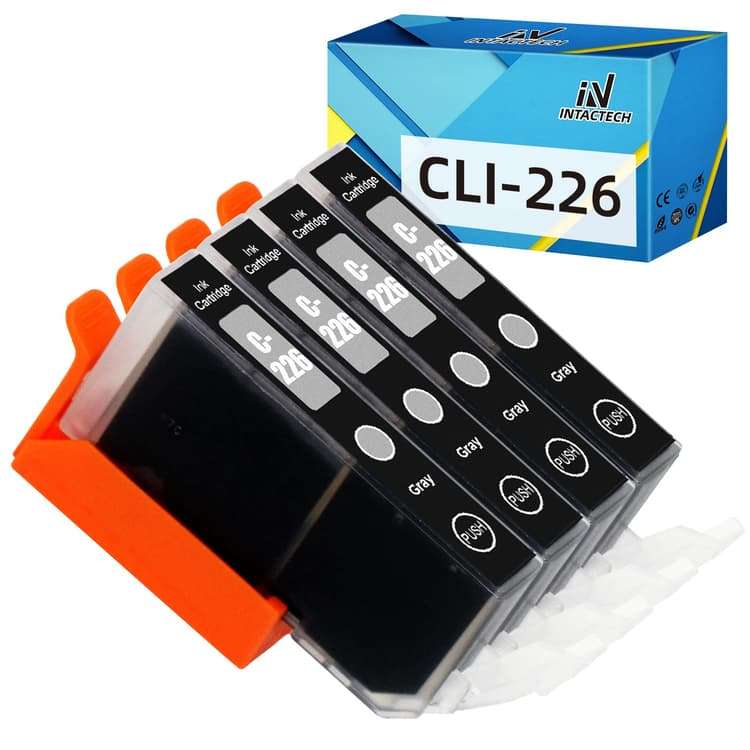
Intactech Compatible CLI-226 Gray Ink Cartridges
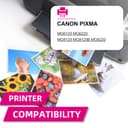
Compatible Printers: Canon Pixma MG6120, Canon Pixma MG6220, Canon Pixma MG8120, Canon Pixma MG8220, Canon Pixma MG8120B
Instructions for use:
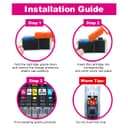
1.Remove the orange cover nozzle cap before installing. (Get some tissue in the hand in case of leakiness)
2.Insert the cartridge into its correct slot. Please make sure to insert the cartridge FIRMLY into the slot with some force. You should hear a CLICK sound
3.Click "OK" if the printer shows a message such as "NO INK"" or “Non-Original
Troubleshooting:
1. If the cartridge was unrecognized, please repeat remove the cartridge and load until recognized
2. If the cartridge give you an error message, please remove the cartridge and turn off the printer for about 30 seconds. Then turn on the and re-install our cartridges
3. If line or blurry happens, pls try to clean printhead for three times----Through your printer panel or the software
Warm Tips:
1. Better keep the printer on if you often use it, as most printers will start print head cleaning automatically when restarting and it will cause some waste of ink.
2. If you don’t use the printer frequently, you can turn it off. But keep in mind to switch on the power every once a week to protect the print head from clogging.
Intactech Compatible CLI-226 Gray Ink Cartridges
Compatible Printers: Canon Pixma MG6120, Canon Pixma MG6220, Canon Pixma MG8120, Canon Pixma MG8220, Canon Pixma MG8120B
Instructions for use:
1.Remove the orange cover nozzle cap before installing. (Get some tissue in the hand in case of leakiness)
2.Insert the cartridge into its correct slot. Please make sure to insert the cartridge FIRMLY into the slot with some force. You should hear a CLICK sound
3.Click "OK" if the printer shows a message such as "NO INK"" or “Non-Original
Troubleshooting:
1. If the cartridge was unrecognized, please repeat remove the cartridge and load until recognized
2. If the cartridge give you an error message, please remove the cartridge and turn off the printer for about 30 seconds. Then turn on the and re-install our cartridges
3. If line or blurry happens, pls try to clean printhead for three times----Through your printer panel or the software
Warm Tips:
1. Better keep the printer on if you often use it, as most printers will start print head cleaning automatically when restarting and it will cause some waste of ink.
2. If you don’t use the printer frequently, you can turn it off. But keep in mind to switch on the power every once a week to protect the print head from clogging.