product-image
product-image
product-image
product-image
product-image
Product Image
    1
    2
    3
    4
    5
    6
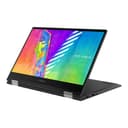
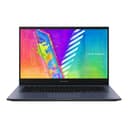
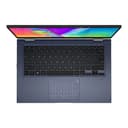
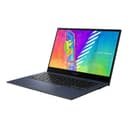
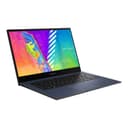
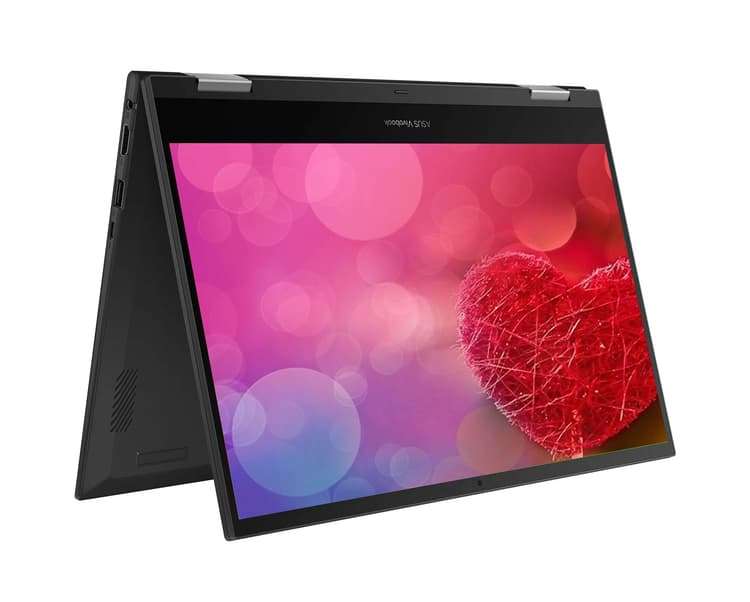
new | ASUS VivoBook Go 2-in-1 Laptop, 14” HD Touch Flip Thin and Light Intel Celeron N4500, 4GB RAM, 64GB eMMC + 512GB PCIe SSD, NumberPad, Windows 11 S +GM Accessories
Brand : ASUS
new | ASUS VivoBook Go 2-in-1 Laptop, 14” HD Touch Flip Thin and Light Intel Celeron N4500, 4GB RAM, 64GB eMMC + 512GB PCIe SSD, NumberPad, Windows 11 S +GM Accessories
Brand : ASUS
Availability : 
Out Of Stock
Click to connect with our customer support
Product Specifications
Conditionnew
AsinB0C4P165Q9
CategoryElectronics
SubcategoryTraditional Laptops
LeafcategoryLaptops
CPU Processorceleron
CPU ManufacturerIntel
CPU Model Numberintel
CPU Speed2.8
Graphics Card DescriptionIntegrated
Graphics Card Interfaceintegrated
Graphics Processor ManufacturerIntel
Graphics RAM Typeddr4_sdram
Processor Count2
Hard Disk TypeEmmc
Optical StorageNo Drive
OriginUSA
BrandnameASUS
Height8.54
Length12.63
Width0.67
Weight4
Display TypeLCD
Form FactorLaptop
Model Year2022
Operating SystemWindows 11 Home
Resolution720p
Warranty Description1
RAM Memory Installed Size4 GB
RAM Memory Maximum Size4 GB
RAM Memory TechnologyDDR4
Product Details
【14" HD touch Display】14” HD Wideview touch display with up to a 178° viewing angle optimized for entertainment.
【Intel Celeron N4500 Processor】1.1 GHz (4M Cache, up to 2.8 GHz, 2 cores) and Intel UHD Graphics. 1 x USB Type-C, 1 x USB 3.2 Type-A, 1 x USB 2.0 Type-A, 1x SD Card Reader, 1 x Headphone/Microphone Combination Jack, 1 x HDMI; Webcam; Wi-Fi 6.
【4GB RAM】Substantial high-bandwidth to smoothly run your games and photo and video-editing applications, as well as multiple programs and browser tabs all at once.
【upgraded to 64GB eMMC + 512GB PCIe SSD】With the large storage capacity, the laptop can store all important files, documents, and media files.
【Windows 11 in S mode】Windows 11 in S mode is only available in the Windows 11 Home edition. If you have the Pro, Enterprise, or Education editions of Windows 10 in S mode, Windows Update will not offer Windows 11 because S mode is not available in those editions of Windows 11. Therefore, if you have the Pro, Enterprise or Education editions of Windows 10 in S mode, you'll need to switch out of S mode to upgrade to Windows 11.
What's Inside The Box ?
laptop
Product Description
We sells computers with upgraded configurations. If the computer has modifications (listed above), then the manufacturer box is opened for it to be tested and inspected and to install the upgrades to achieve the specifications as advertised. If no modifications are listed, the item is unopened and untested. Defects & blemishes are significantly reduced by our in depth inspection & testing

Switching out of S mode in Windows 11
Windows 11 in S mode is designed for security and performance, exclusively running apps from the Microsoft Store. If you want to install an app that isn't available in the Microsoft Store, you'll need to switch out of S mode

1. On your PC running Windows 11 in S mode, open Settings > System > Activation.

2. In the Switch to Windows 11 Pro section, select Go to the Store. (If you also see an "Upgrade your edition of Windows" section, be careful not to click the "Go to the Store" link that appears there.)

3. On the Switch out of S mode (or similar) page that appears in the Microsoft Store, select the Get button. After you see a confirmation message on the page, you'll be able to install apps from outside of the Microsoft Store.

Display:
14 HD Wideview touch display

Processor:
Intel celeron n4500 (4M Cache, up to 2.8 GHz, 2 cores)

Processor Graphics:
Intel UHD Graphics

Memory:
4GB RAM

Storage:
upgraded to 64GB eMMC + 512GB PCIE SSD

Ports:
1 x USB 2.0
2 x USB 3.2 Gen 1
1 x HDMI
1 x Card reader
1 x Headphone / microphone combo jack (3.5mm)
Camera:
HD 720p with Privacy Shutter

Wireless:
WIFi 6

Operation System:
Windows 11 Home in S mode

Dimensions:
12.63 x 8.54 x 0.67 inches

Weight:
3.31 lbs
Product Description
We sells computers with upgraded configurations. If the computer has modifications (listed above), then the manufacturer box is opened for it to be tested and inspected and to install the upgrades to achieve the specifications as advertised. If no modifications are listed, the item is unopened and untested. Defects & blemishes are significantly reduced by our in depth inspection & testing

Switching out of S mode in Windows 11
Windows 11 in S mode is designed for security and performance, exclusively running apps from the Microsoft Store. If you want to install an app that isn't available in the Microsoft Store, you'll need to switch out of S mode

1. On your PC running Windows 11 in S mode, open Settings > System > Activation.

2. In the Switch to Windows 11 Pro section, select Go to the Store. (If you also see an "Upgrade your edition of Windows" section, be careful not to click the "Go to the Store" link that appears there.)

3. On the Switch out of S mode (or similar) page that appears in the Microsoft Store, select the Get button. After you see a confirmation message on the page, you'll be able to install apps from outside of the Microsoft Store.

Display:
14 HD Wideview touch display

Processor:
Intel celeron n4500 (4M Cache, up to 2.8 GHz, 2 cores)

Processor Graphics:
Intel UHD Graphics

Memory:
4GB RAM

Storage:
upgraded to 64GB eMMC + 512GB PCIE SSD

Ports:
1 x USB 2.0
2 x USB 3.2 Gen 1
1 x HDMI
1 x Card reader
1 x Headphone / microphone combo jack (3.5mm)
Camera:
HD 720p with Privacy Shutter

Wireless:
WIFi 6

Operation System:
Windows 11 Home in S mode

Dimensions:
12.63 x 8.54 x 0.67 inches

Weight:
3.31 lbs